How to Audit Your GA4 Setup in 30 Minutes
You set up GA4 six months ago. Since then, three people have added events, someone changed a filter, and nobody has checked whether the data stream is actually configured correctly. Sound familiar?
A GA4 audit does not need to take a full day. You can catch the most damaging problems in 30 minutes if you know exactly where to look. This guide gives you a structured checklist — five areas, six minutes each — so you can find setup issues before they corrupt your reports.
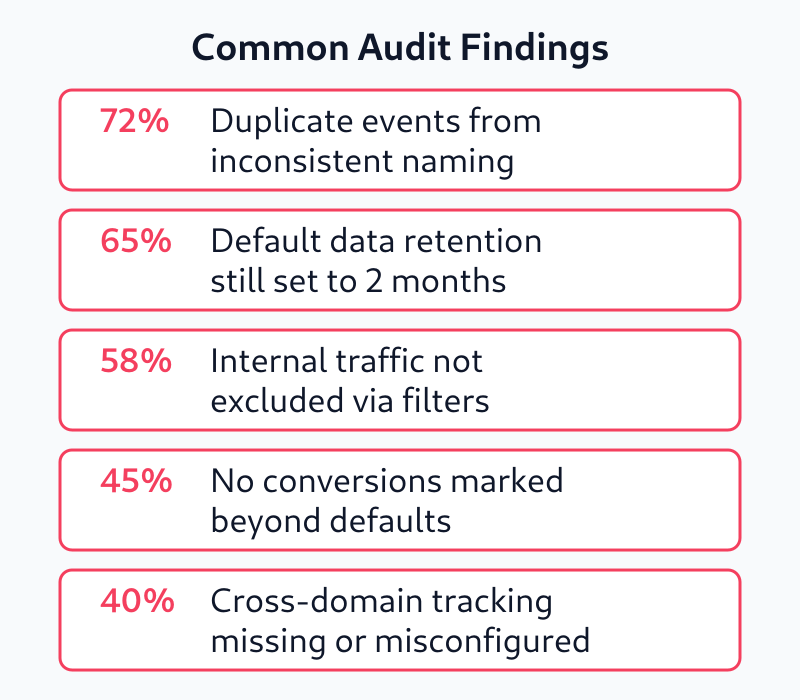
Key Takeaways: Audit your GA4 property in five steps: data streams, event names, conversions, filters, and data retention. Most properties have at least two of five common problems. Run this audit monthly or after any tracking change. The biggest issues — duplicate events and missing filters — are the easiest to fix.
Why You Need a Regular GA4 Audit
GA4 properties degrade over time. It is not a question of whether your setup will drift — it is a question of when. New team members add events without checking the naming convention. Developers push code that fires duplicate events. Someone toggles enhanced measurement off during testing and forgets to re-enable it.
The result: your reports show data that looks plausible but is actually wrong. Decisions get made on flawed numbers. By the time anyone notices, you have months of unreliable data that cannot be corrected retroactively.
A regular GA4 audit prevents this. Thirty minutes once a month is enough to catch problems early, before they become expensive.
Before You Start
Open these three screens before you begin:
- GA4 Admin panel — You need admin or editor access to the property
- Google Tag Manager (or your tag management tool) — To cross-reference what fires
- Your tracking plan document — The list of approved events and naming standards (if you do not have one, that is your first finding)
Set a timer for 30 minutes. Work through each section in order.
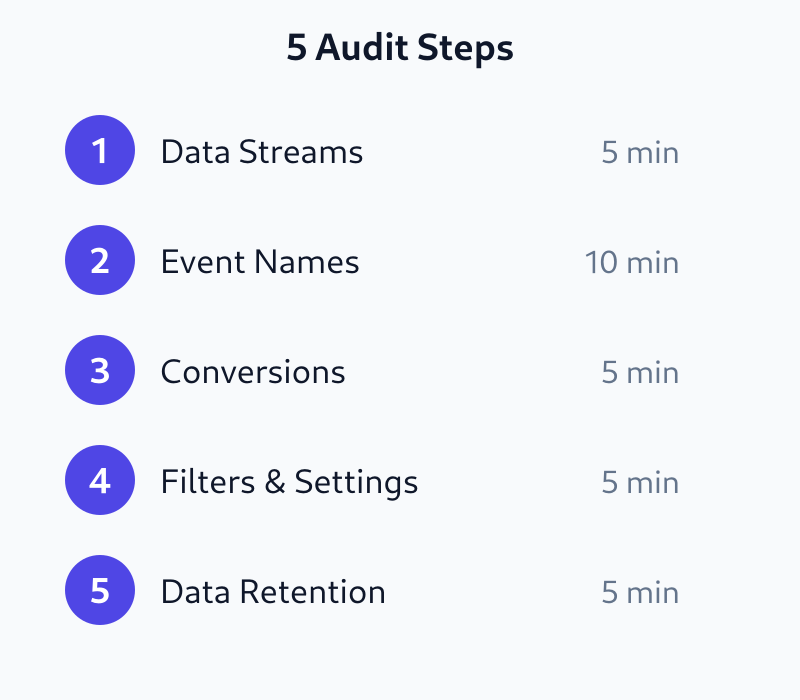
Step 1: Check Your Data Streams (5 Minutes)
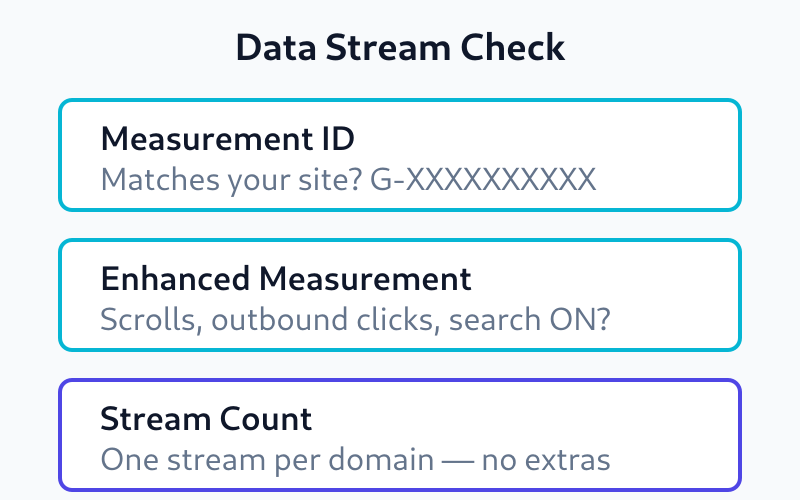
Go to Admin > Data Streams. You should see one web data stream per domain. If you see multiple streams for the same site, you are likely double-counting sessions.
For each stream, check:
- Measurement ID — Confirm the G-XXXXXXXXXX ID matches what is actually deployed on your site. Open your site, inspect the page source, and verify the ID.
- Enhanced measurement — Make sure page views, scrolls, outbound clicks, site search, and file downloads are toggled on. These are free data — there is no reason to leave them off unless you have a specific privacy requirement.
- Stream URL — Verify it points to the correct domain, including the right protocol (https, not http).
Google’s documentation on setting up data streams covers each enhanced measurement toggle in detail.
Step 2: Audit Your Event Names (10 Minutes)
This step catches the most issues. Go to Admin > Events or open the Events report under the Reports section.
Look for these problems:
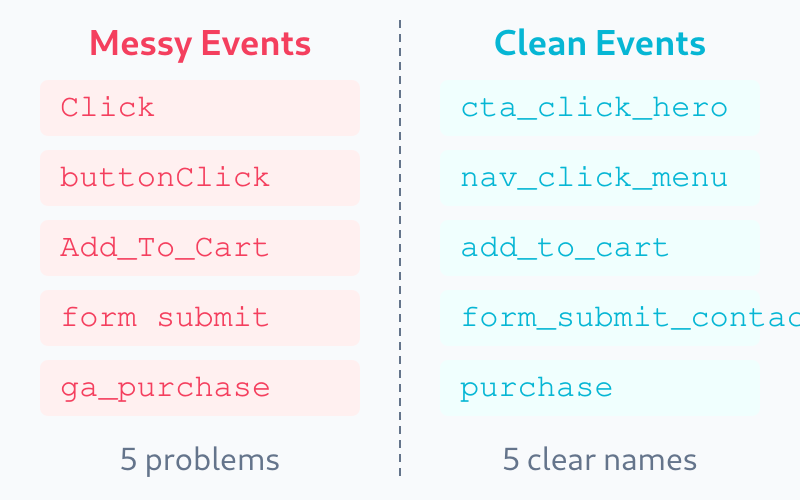
- Duplicate events with different casing —
add_to_cartandAdd_To_Cartare two separate events in GA4. If you spot any mixed casing, your data is split. - Events with spaces or special characters — These should not exist. GA4 event names should use only lowercase letters, numbers, and underscores.
- Vague event names — Names like
clickorsubmittell you nothing. Every event should follow a clear pattern like[object]_[action]_[qualifier]. - Events using reserved prefixes — Anything starting with
ga_,firebase_, orgoogle_will be silently dropped. - Events not in your tracking plan — If an event exists in GA4 but not in your documentation, find out where it came from.
If you find naming problems, read our detailed guide on the five event naming mistakes that break GA4 reports. It covers exactly how to fix each pattern.
Step 3: Verify Conversions (5 Minutes)
Go to Admin > Conversions (called Key Events in newer GA4 interfaces). Check three things:
- Are your important actions marked as conversions? — Form submissions, purchases, sign-ups, and other business-critical events should be flagged. If only
purchaseis marked and you also care aboutgenerate_lead, you are missing data in your conversion reports. - Are any conversions getting zero events? — A conversion with no data in the last 7 days is either broken or no longer relevant. Investigate or remove it.
- Are there too many conversions? — If everything is a conversion, nothing is. Keep the list focused on actions that actually matter to your business.
Google’s guide to conversions in GA4 explains how to mark and manage key events.
Step 4: Review Filters and Settings (5 Minutes)
Go to Admin > Data Settings > Data Filters. Check:
- Internal traffic filter — Is it active or still in testing mode? Many teams create the filter during setup but forget to switch it from “Testing” to “Active.” Your reports include employee traffic until you flip that switch.
- Developer traffic filter — If your development or staging environments share the same measurement ID (they should not, but they often do), you need a filter to exclude that traffic.
Also check Admin > Data Settings > Data Collection:
- Google Signals — Decide whether you need it. It enables cross-device reporting but can cause data thresholding that hides rows in your reports.
- Granular location and device data — Verify this is set according to your privacy requirements.
If your site uses UTM parameters, this is also a good time to verify they follow a consistent pattern. Our guide to UTM naming conventions covers the standard your team should follow.
Step 5: Check Data Retention (5 Minutes)
Go to Admin > Data Settings > Data Retention. The default is 2 months. For most teams, this should be set to 14 months.
Why it matters: data retention controls how far back you can go in the Explorations section of GA4. Standard reports use aggregated data and are not affected. But if you build custom explorations — funnels, path analysis, segment comparisons — you can only access user-level data within your retention window.
If your retention is still set to 2 months, change it now. You cannot recover data from before you change the setting, so every day you wait is a day of exploration data you lose.
Google’s documentation on data retention settings explains the difference between standard reports and explorations.
What to Do With Your Findings
After your audit, you will have a list of issues. Prioritize them:
- Fix now — Internal traffic filter not active, data retention at 2 months, wrong measurement ID. These take 2 minutes and have immediate impact.
- Fix this week — Duplicate event names, missing conversions, enhanced measurement toggles. These require coordination with your dev team.
- Plan for next sprint — Cross-domain tracking, event naming overhaul, tracking plan documentation. These are bigger projects.
Document every finding and its resolution. The next time you run this audit — and you should run it monthly — you will want to confirm that previous fixes are still in place.
Frequently Asked Questions
How often should I audit my GA4 setup?
Once a month is the minimum. Also run this checklist after any major website change, tag manager update, or when a new team member gets access to your GA4 property. The 30-minute investment prevents weeks of data cleanup later.
Can I automate parts of the GA4 audit?
Partially. You can use the GA4 Admin API to pull property settings programmatically, and BigQuery exports let you query event names for duplicates at scale. But the manual review of filters, conversions, and data stream settings still requires a human who understands the business context.
What if I find problems that go back months?
GA4 does not let you fix historical data. Once an event is logged with the wrong name, that data stays as-is. What you can do: fix the issue going forward, document when the fix was applied, and note the affected date range in your reporting. Anyone analyzing data across that boundary needs to account for the break.
Do I need GA4 admin access to run this audit?
Editor access is sufficient for most checks. You need admin access to change data retention, activate filters, or modify data stream settings. If you only have viewer access, you can still review events and conversions but cannot fix anything you find.

Marketing strategist turned measurement consultant. After 9 years bridging the gap between marketers who need data and analysts who need structure, I started WebStatsPolicy to make analytics standards accessible to everyone. Because good measurement shouldn't require a PhD — just clear rules and the right tools.